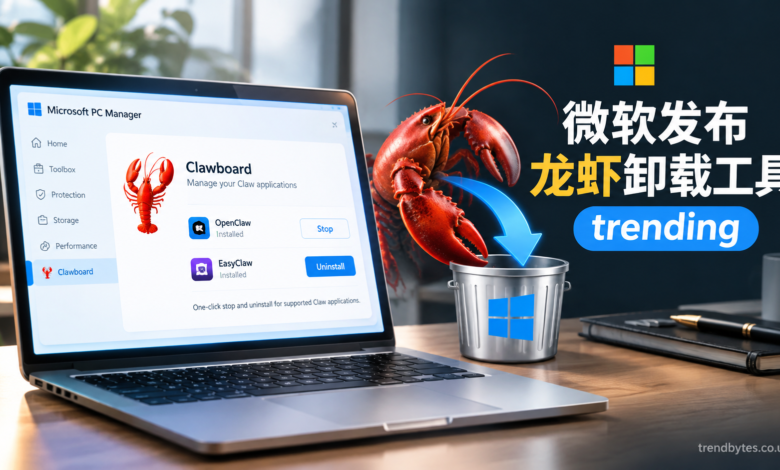
The phrase 微软发布龙虾卸载工具 trending has attracted attention because Microsoft introduced a simpler way to manage and remove AI agents commonly nicknamed “lobsters.” The feature is part of Microsoft PC Manager and is designed around OpenClaw and EasyClaw.
Instead of manually searching for running processes, installation folders, configuration files, plugins, and logs, users can use a dedicated management interface. Microsoft’s PC Manager team described the feature as supporting one-click stopping and uninstalling for supported Claw applications.
The update matters because local AI agents can run continuously, use system resources, open network ports, and create files across different locations. A dedicated cleanup process can make removal easier for people who do not want to handle those tasks manually.
What Does 微软发布龙虾卸载工具 trending Actually Mean?
The term “龙虾,” or “lobster,” is an informal nickname associated with OpenClaw and similar AI-agent applications. The nickname comes from the lobster imagery used around the OpenClaw ecosystem.
Microsoft’s feature is not a standalone Windows tool called “Lobster Uninstaller.” Instead, it is a function inside Microsoft PC Manager, where users can manage supported Claw applications.
The feature was initially reported in March 2026 and supported OpenClaw and EasyClaw. Reports at launch said Microsoft planned to expand compatibility to additional Claw platforms.
That distinction is important. Searching for a random “lobster uninstall tool” online could lead users to unofficial downloads. The safer approach is to use the feature through Microsoft PC Manager itself.
Why 微软发布龙虾卸载工具 trending Became a Hot Topic
OpenClaw attracted significant attention as an open-source personal AI-agent framework. Microsoft itself later discussed the broader OpenClaw ecosystem in its Command Line publication, describing how a Microsoft employee built a personal AI assistant called Lobster using OpenClaw.
At the same time, managing these systems can be more complicated than uninstalling an ordinary desktop application.
An AI agent may have:
- Background processes
- Local configuration files
- Plugins or skills
- Logs
- Cached files
- Installation packages
- Network ports
- User-created data
This is why a dedicated management feature can be useful.
How Microsoft’s Clawboard Works
The relevant feature is known as Clawboard inside Microsoft PC Manager. Early versions appeared as a preview feature for managing OpenClaw-related applications. Microsoft Q&A discussions also documented users seeing the red lobster icon inside PC Manager during the rollout.
Clawboard provides two important actions: stop and uninstall.
The difference between them is simple.
One-Click Stop
The stop function is designed for users who want to temporarily disable their Claw application without deleting its stored information.
According to descriptions of the feature, it can identify related processes and services and stop them while preserving user data. It can also release associated ports.
This is useful when you are troubleshooting performance, checking whether an AI agent is causing a conflict, or simply do not want it running in the background.
One-Click Uninstall
The uninstall option is intended for users who want to remove a supported Claw application.
Reports about the launch describe a process that can stop related processes, invoke the platform’s standard uninstall process, and clean installation files, directories, configuration files, plugins, logs, and other local remnants.
That can be easier than manually hunting for individual files.
However, users should still back up anything important before removing software. A cleanup operation is not the same thing as a backup tool.
What Versions Support the Feature?
The initial launch information stated that Microsoft PC Manager needed to be updated to version 3.20.7.0 or later for the new functionality, with the feature being rolled out gradually.
Later updates expanded the Clawboard experience. In May 2026, the Microsoft PC Manager account reported that the Clawboard dashboard had been upgraded to show installed Claw and AI-agent applications, resource usage, installation locations, and management options. That announcement instructed users to update to version 3.21.4.0 or later for the upgraded experience.
Because Microsoft can change feature availability through staged releases, users should check their current PC Manager version rather than relying on an old installation package.
How to Use the Microsoft Lobster Uninstall Feature
If you have installed a supported Claw application and want to remove it, the general process is straightforward.
Step 1: Update Microsoft PC Manager
Open Microsoft PC Manager and check whether you are running a current version.
An older version may not contain the Clawboard feature or may have an earlier implementation.
Step 2: Open Clawboard
Look through the available PC Manager features for the Clawboard or Claw-management section.
If you do not see it, the feature may not have reached your installation yet, or your version may not support it.
Step 3: Review the Detected Application
Before selecting uninstall, check which Claw application PC Manager has identified.
This is especially important if you have multiple AI tools installed.
Step 4: Choose Stop or Uninstall
Select Stop if you only want to pause the application.
Choose Uninstall if your goal is to remove the supported application and its associated local components.
Step 5: Check Your System Afterwards
After the process finishes, restart the computer if Windows or the application recommends it.
Then check whether the software still appears in your installed applications, startup items, or other expected locations.
Why a Dedicated Uninstaller Can Be Useful
Traditional uninstallers generally focus on removing the application’s registered installation components. AI-agent environments can involve additional files and services, depending on how they were installed and configured.
A dedicated management interface can therefore make the process easier for less technical users.
For example, imagine someone installed OpenClaw for testing and later decided that they no longer needed it. Instead of searching through Windows folders and manually terminating processes, the user can open the supported management interface and use the uninstall function.
This reduces the number of manual steps.
It also helps users understand that simply closing a window does not necessarily mean an always-running agent has stopped.
Security and Privacy Considerations
The arrival of a dedicated uninstall feature does not mean every AI agent is automatically safe.
Users should still consider what permissions an AI agent has been given.
An agent that can interact with messaging platforms, files, browsers, APIs, or other services may have access to information beyond the basic application itself. Microsoft has discussed security considerations around self-hosted agent runtimes, including concerns related to untrusted input, downloaded skills, code execution, credentials, identity, and privilege boundaries.
Therefore, uninstalling an application is only one part of good security hygiene.
If you previously connected an AI agent to external accounts, review those connections separately. Removing the local application does not necessarily mean that every third-party account, API credential, token, or cloud-side authorization has been revoked.
Common Mistakes to Avoid
Mistake 1: Downloading a Random “Lobster Uninstaller”
Search results can contain unofficial tools with similar names.
Avoid downloading unknown executable files simply because their title includes “OpenClaw,” “Claw,” or “lobster.” Use the management functionality provided through Microsoft PC Manager when it is available.
Mistake 2: Confusing Stop With Uninstall
Stopping an application does not necessarily delete it.
The stop function is intended for temporary suspension, while uninstall is the removal option.
Mistake 3: Forgetting Important Data
Before choosing a full uninstall, check whether you have saved prompts, configurations, projects, logs, credentials, or other information you may want later.
Mistake 4: Assuming Every Claw Application Is Supported
The initial rollout specifically named OpenClaw and EasyClaw. Compatibility can change over time, so check the applications actually detected by your PC Manager version.
Mistake 5: Ignoring External Credentials
If your AI agent was connected to an API, messaging platform, cloud service, or other account, review those credentials independently after uninstalling the local application.
Best Practices for Managing Local AI Agents
A few simple habits can make local AI-agent management much easier.
Keep software updated. Updates can provide security fixes, compatibility improvements, and better management tools.
Know what the agent can access. Review filesystem permissions, integrations, APIs, and connected accounts.
Back up useful data. Do this before major cleanup operations.
Monitor resource usage. Unexpected CPU, RAM, disk, or network activity can be a reason to investigate an agent.
Remove unused applications. If you no longer need an experimental AI agent, leaving it running indefinitely creates unnecessary maintenance and security considerations.
Use official management tools. They reduce the need to run unknown cleanup scripts or download unofficial uninstallers.
What Happens to OpenClaw After Uninstalling It?
The exact result depends on the installation and the supported management method.
For the Microsoft PC Manager feature, reports describe the uninstall process as covering related processes, installation components, local directories, configuration, plugins, and logs.
However, users should distinguish local cleanup from external account cleanup.
For example, if an AI agent previously used a third-party API key, deleting the local application does not automatically prove that the key has been revoked. If you no longer need that credential, manage it through the service that issued it.
This is a useful general rule for any software with external integrations.
People Also Ask
Is the Microsoft lobster uninstall tool real?
Yes. Microsoft PC Manager introduced a Claw-management feature designed to stop and uninstall supported Claw applications. The initial supported applications included OpenClaw and EasyClaw.
What is the Microsoft lobster tool?
The “lobster tool” is an informal description of the Clawboard functionality in Microsoft PC Manager. It is designed to help users manage AI-agent applications associated with the Claw ecosystem.
Can Microsoft PC Manager uninstall OpenClaw?
The Clawboard feature was introduced specifically with support for OpenClaw and EasyClaw. Availability can depend on the PC Manager version and rollout status.
Does uninstalling OpenClaw delete everything?
Microsoft’s Clawboard uninstall process is designed to clean related processes, installation components, local data, configurations, plugins, and logs. However, users should independently review external accounts, credentials, and cloud services connected to the agent.
What is Clawboard?
Clawboard is the Claw-management area integrated into Microsoft PC Manager. Later updates added information about installed Claw and AI-agent applications, resource usage, installation locations, and management controls.
Why is there a lobster icon in Microsoft PC Manager?
The lobster imagery is associated with the OpenClaw ecosystem. Microsoft PC Manager introduced Clawboard as a way to manage supported Claw applications, which explains the lobster-themed interface.
Do I need to uninstall OpenClaw if I am not using it?
If you no longer need an application, removing it can reduce unnecessary background software and maintenance. Before uninstalling, back up anything important and review connected credentials or services.
Is Clawboard available to everyone?
Feature availability has changed during the rollout. Microsoft PC Manager initially introduced the feature as a preview/gradual rollout, so users may see different functionality depending on their PC Manager version and release channel.
Conclusion
The 微软发布龙虾卸载工具 trending story is essentially about Microsoft PC Manager adding a dedicated way to manage the growing ecosystem of local AI agents known as “Claws” or “lobsters.” The feature gives users a simpler alternative to manually stopping processes and searching for leftover installation files.
The initial Clawboard release supported OpenClaw and EasyClaw, with one-click options for stopping or uninstalling supported applications. Later updates expanded the dashboard with additional information about installed agents, resource usage, and installation locations.
For users experimenting with local AI agents, the key lesson is simple: 微软发布龙虾卸载工具 trending is not about downloading a mysterious third-party uninstaller. It refers to a Microsoft PC Manager feature intended to make Claw application management easier.
Before removing an AI agent, back up important data, review connected accounts and credentials, confirm what will be deleted, and use trusted software-management tools. This approach makes the cleanup process more predictable while helping users maintain better control over local AI applications.